Install Playback
Download Playback and get it running on your Mac.
Playback is a native macOS app. Download it, drag it to your Applications folder, and open it — no account needed to get started.
Requirements
| Requirement | Notes |
|---|---|
| macOS 14 Sonoma or later | ScreenCaptureKit and the capture pipeline target macOS 14+. |
| Apple silicon Mac | Playback runs natively on Apple silicon. |
Download and install
Download Playback
Get the latest version from the Playback website.
It downloads as a Playback.dmg disk image.
Move it to Applications
Open the downloaded .dmg and drag Playback into your Applications folder.
Open it
Launch Playback from Applications. Because Playback isn’t notarized by Apple yet, macOS blocks the first launch — see Getting past macOS security just below for the one-time steps to open it.
After that, on first launch Playback asks you to grant Screen Recording and Accessibility permissions — see Permissions.
Getting past macOS security
Playback is a real, notarization-pending app: it’s code-signed but not yet notarized by Apple, because it’s going through the Apple Developer Program. Until that clears, macOS Gatekeeper treats it as an app from an unidentified developer and blocks the first launch. This is a one-time approval — once you let it open, macOS remembers your choice and never asks again.
Try to open it — and let macOS block it
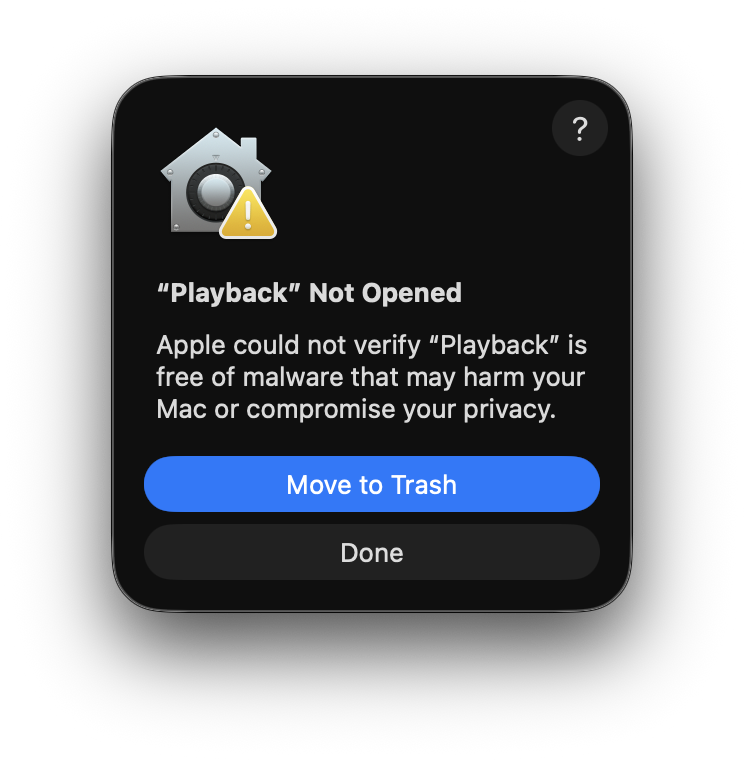
Open Playback from your Applications folder as normal. macOS stops it with a dialog saying it “could not verify Playback is free of malware.” Click Done (do not click Move to Trash).
Open Anyway in System Settings
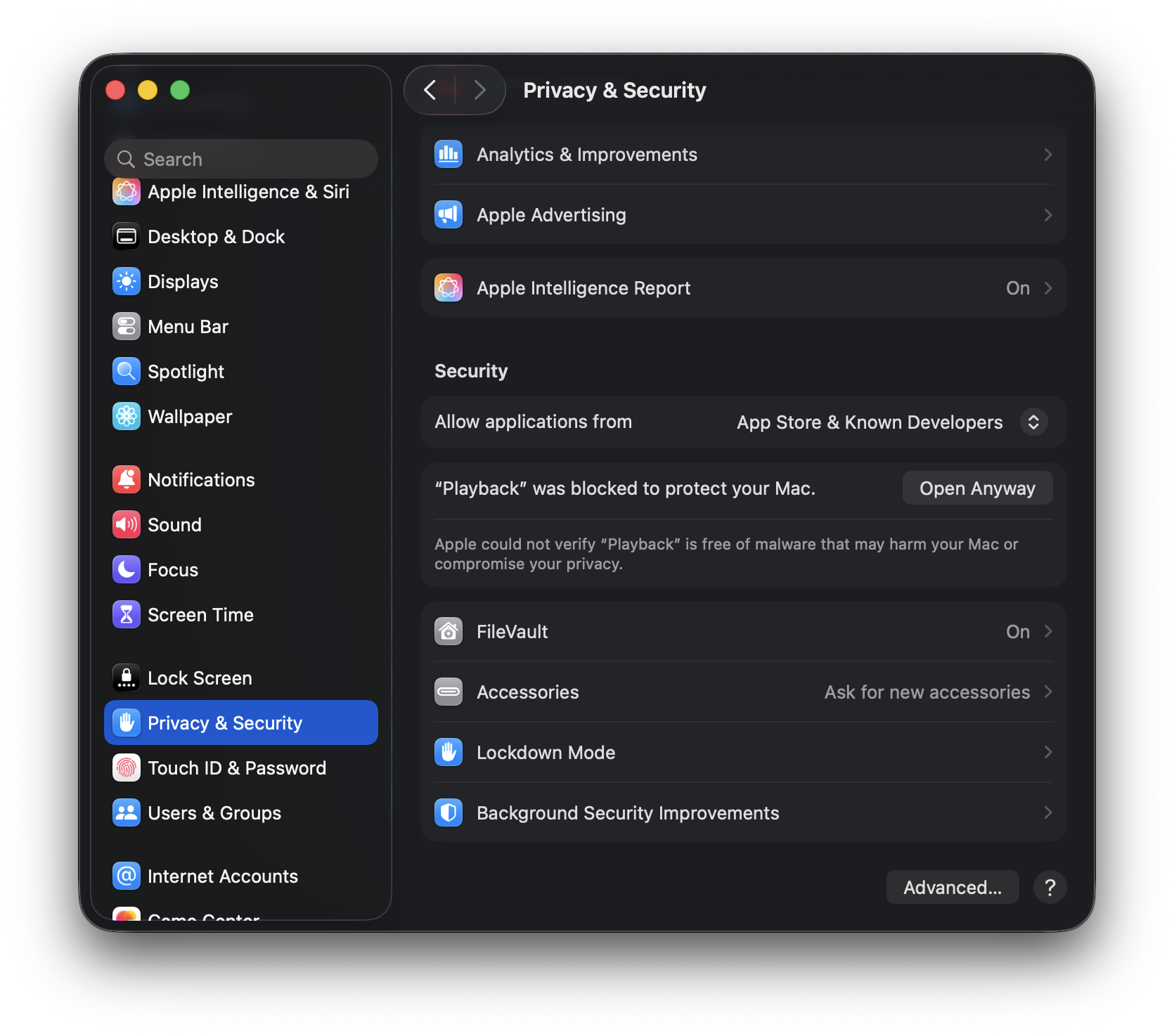
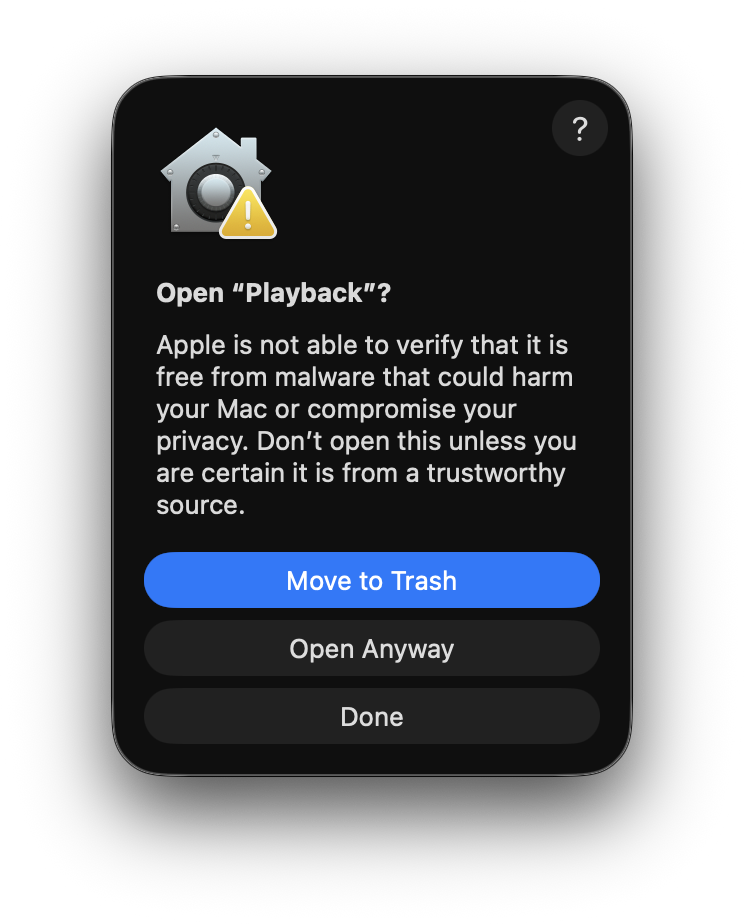
Open System Settings → Privacy & Security and scroll down to the Security section. You’ll see “Playback” was blocked to protect your Mac with an Open Anyway button. Click it.
Authenticate
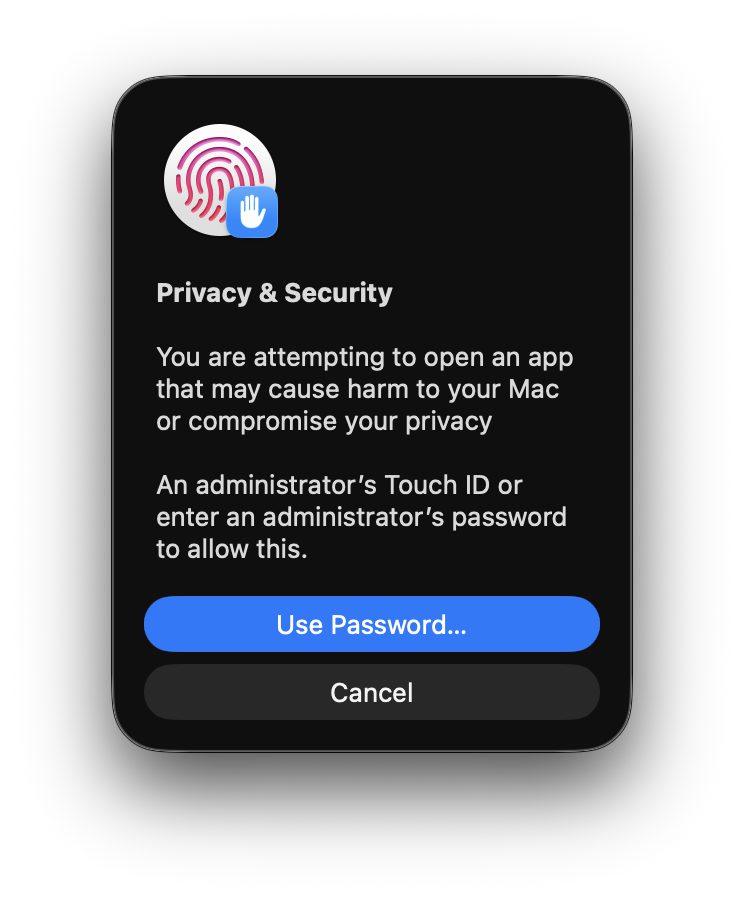
Approve with Touch ID, or click Use Password… and enter your Mac’s administrator password.
Playback opens, and from now on you can launch it normally from Applications, Spotlight, or the Dock — the warnings won’t return.