Welcome to Playback
The place to learn how Playback works — from your first recording to a finished, shareable demo.
Playback is a native macOS screen-recording studio. It records your screen and turns the raw capture into the kind of polished product demo you’d want to ship: cursor-following zooms, your recording floating on a soft gradient, a smoothed cursor with click effects, captions, speed edits, and MP4 or GIF export.
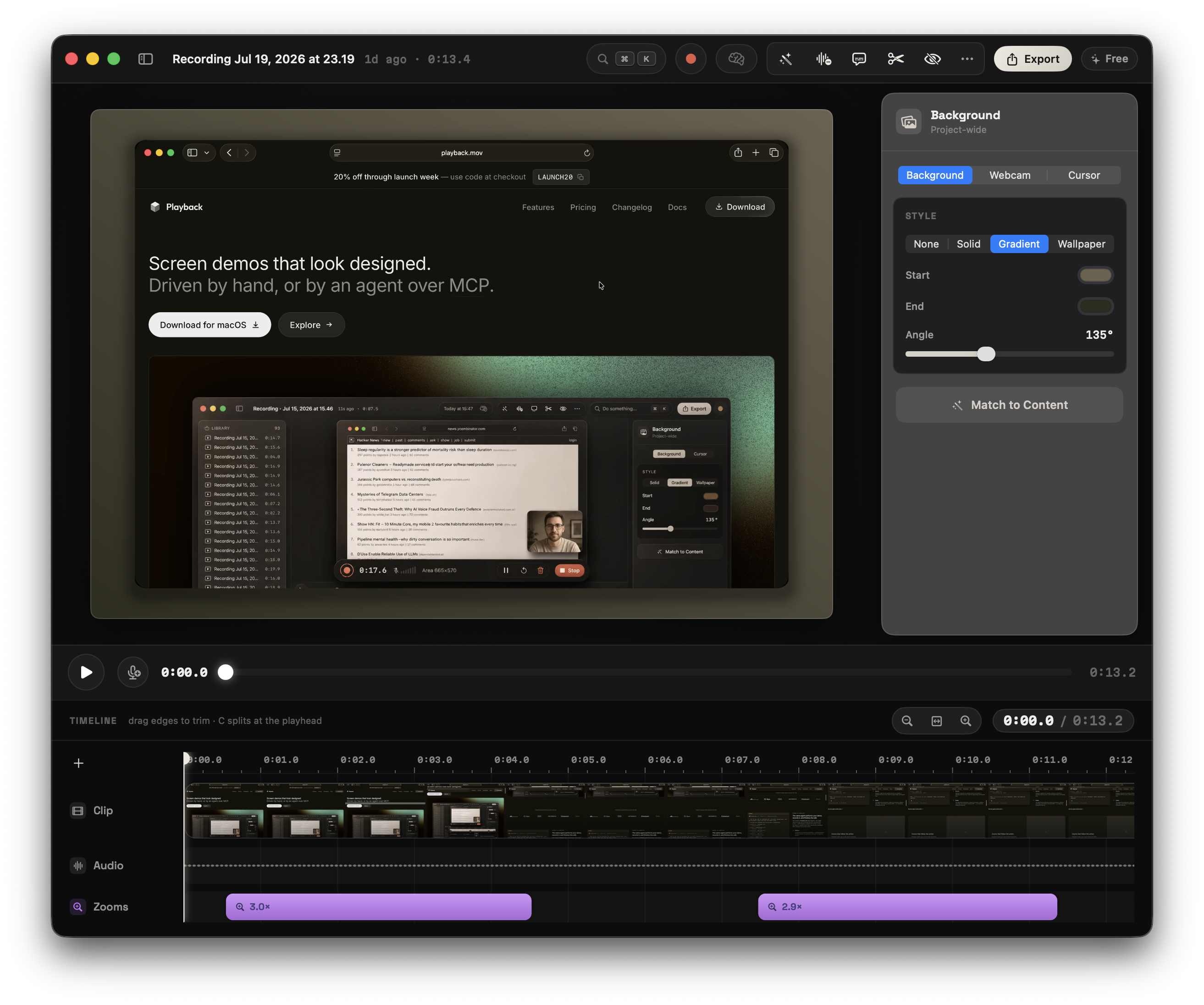
This guide covers how to do all of that by hand, in the app. If you’ve used a screen recorder before, most of it will feel familiar — the sections below follow the natural order of making a video.
What you can do
Record
Capture a display, a window, an area, or a connected iPhone — with mic and camera.
Add zooms
Let Playback push in on the moments that matter, automatically or by hand.
Edit the timeline
Trim, split, cut dead air, and change speed — all non-destructive.
Style the look
Cursor, click effects, captions, and Playback’s signature floating frame.
Export & share
Render to MP4 or GIF at the resolution and quality you need.
Drive it with an agent
Playback ships an MCP server, so an AI agent can record, edit, and export for you.
How Playback thinks about your recording
Two ideas make the rest of the app make sense:
- Your recording is never modified. When you record, Playback saves the original capture untouched. Every edit — a zoom, a trim, a caption, a speed change — is stored as an instruction, and the finished video is re-composited from the original when you export. That means you can change your mind about anything, at any time, without ever losing quality.
- Your work saves itself. There’s no Save button to remember. Playback autosaves every change a second after you make it, and flushes anything pending when you quit.
Playback is under active development, so some features described here are still growing. When something isn’t in the app yet, the guide says so.